
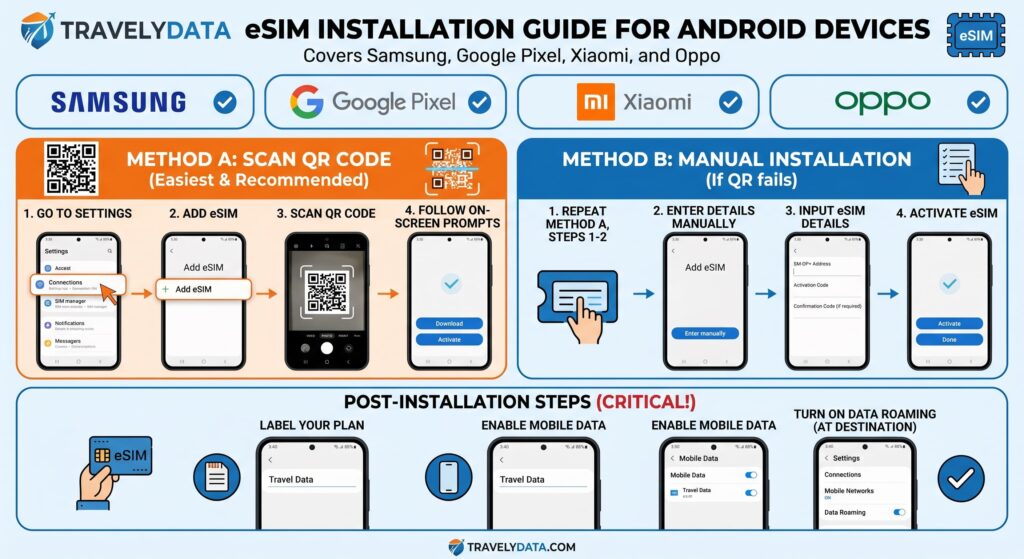
Setting up an eSIM on your Android device is the quickest way to get connected while traveling with TravelyData. By following a few simple steps in your device settings, you can activate your digital SIM and enjoy high-speed data without the hassle of physical cards. This guide covers the installation process for the most popular Android manufacturers using the QR code method provided in your confirmation email.
Installing eSIM on Samsung Galaxy Devices
Samsung devices provide a streamlined interface within the Connections menu to manage your mobile plans efficiently.
- Open Settings and tap on Connections.
- Select SIM manager.
- Tap Add eSIM.
- Choose Scan QR code from service provider and scan the QR code provided by TravelyData.
- Follow the on-screen prompts to download and activate the plan.
Installing eSIM on Google Pixel Devices
Google Pixel phones offer a clean experience for adding new networks through the SIMs menu in your network settings.
- Go to Settings and select Network & internet.
- Tap the + (plus) icon next to SIMs.
- Select Download a SIM instead? at the bottom of the screen.
- When prompted, scan the QR code received in your confirmation email.
- Tap Download to finish the setup and activate the profile.
Installing eSIM on Xiaomi Devices
Xiaomi users can manage their digital profiles through the SIM cards & mobile networks section of the MIUI or HyperOS settings.
- Navigate to Settings and tap SIM cards & mobile networks.
- Scroll down and select Manage eSIM.
- Ensure the eSIM toggle is turned on.
- Tap Add eSIM and select Scan QR code.
- Scan your TravelyData QR code and confirm the installation when prompted.
Installing eSIM on Oppo Devices
Oppo devices running ColorOS make it easy to add a secondary data plan via the Mobile Network settings menu.
- Open Settings and go to Mobile Network.
- Tap on eSIM.
- Enable the eSIM functionality if it is currently disabled.
- Tap Add eSIM and select Next to open the camera scanner.
- Scan your QR code and wait for the profile to download to your device.
Crucial Step: Enable Data Roaming
Once your eSIM is installed and selected as the preferred line for mobile data, there is one final step to ensure you can access the internet abroad. Without this step, your device will not connect to the local partner network.
- Go to your Mobile Network settings for the newly installed TravelyData eSIM.
- Locate the Data Roaming toggle and switch it to ON.
- Ensure that the Mobile Data toggle is also enabled for the eSIM.
- Restart your device if the signal does not appear within a few minutes of activation.
