
TravelyData guide for setting up your digital SIM. Installing an eSIM on your iPhone is a seamless process that ensures you stay connected globally without the need for physical SIM cards. Before you begin, please ensure your device is connected to a stable WiFi network to complete the activation process successfully.
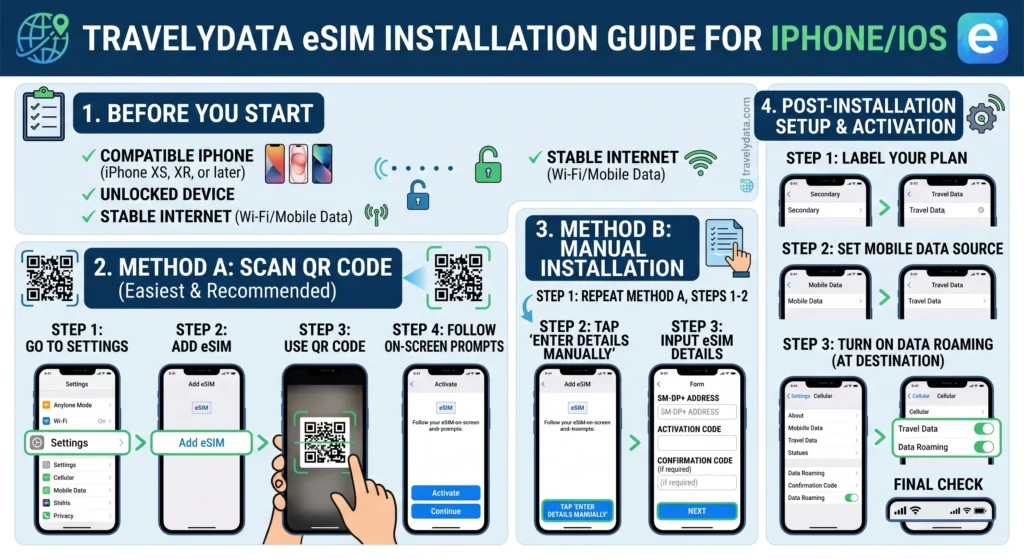
Method 1: QR Code Installation
This is the fastest way to install your eSIM. Follow these steps:
- Open the Settings app on your iPhone.
- Tap on Cellular (or Mobile Service in some regions).
- Tap Add eSIM.
- Select Use QR Code.
- Scan the QR code provided in your TravelyData confirmation email or account dashboard.
- Follow the on-screen prompts to finish the activation process.
Method 2: Manual Installation
If you are unable to scan the QR code because it is on the same device, use the manual entry method:
- Go to Settings and select Cellular.
- Tap Add eSIM and then Use QR Code.
- Tap Enter Details Manually at the bottom of the scanning screen.
- Enter the SM-DP+ Address and Activation Code provided in your TravelyData order details.
- Follow the remaining prompts to complete the installation.
Critical Final Steps
To ensure your data works as soon as you arrive, please follow these essential rules:
- Enable Data Roaming: Navigate to Settings > Cellular > [Your New eSIM] and toggle Data Roaming to ON. Your eSIM will not connect to local networks without this setting.
- Do Not Delete the eSIM: If you encounter connection issues, do not delete the eSIM from your phone. eSIMs are generally single-use; once deleted, they cannot be re-installed, and you may lose your data plan.
- Primary Data Line: Ensure that your TravelyData eSIM is selected as the active line for Cellular Data in your settings.
